

- Monthly visits
- 0
- 2026-09
Photo to Text - Free online photo to text OCR converter with advanced models
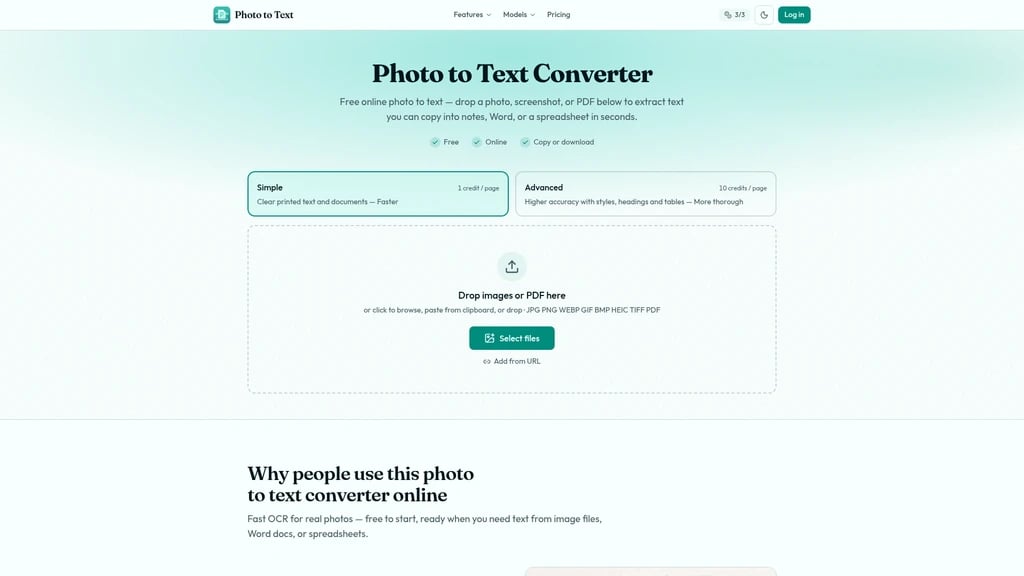
Struggling to extract text from images, screenshots, or PDF scans? Photo to Text is a free online OCR tool that converts images to editable text in seconds. It offers dual-mode OCR with Simple mode for clear shots and Advanced mode for blurry or complex layouts. Extract text to copy into notes, Word, or Excel without registration. Built-in DeepSeek OCR and GLM OCR models preserve document structure for professional results.
552Views

What Is Photo to Text?
You know that feeling. You snap a quick photo of a textbook page, scan a receipt, or screenshot a webpage — and then realize you can't copy a single word from it. The text is right there on screen, but your only option is to retype everything manually. Hours of your day disappear into tedious typing, and before you know it, you're eyeing a stack of documents with a sinking feeling.
That's exactly the problem Photo to Text (photototext.ai) was built to solve. It's a free online OCR (optical character recognition) tool that turns images, photos, screenshots, and PDFs into editable text you can copy into notes, Word documents, or spreadsheets in seconds — no registration required.
Here's what makes it genuinely useful rather than just another "converter": the platform supports a dual-mode OCR system. The Simple mode handles crisp, clear images like screenshots and well-lit photos. The Advanced mode steps in when your image is harder to read — blurry phone photos, tilted pages, handwritten notes, or cluttered layouts. Instead of forcing you to make one tool work for every scenario, Photo to Text gives you the right tool for the job.
The input format coverage is equally generous. You can upload JPG, PNG, WEBP, GIF, BMP, HEIC, TIFF, or PDF files, and get them into the tool three ways: drag and drop, paste from clipboard, or browse your files. Everything happens in your browser, and the output is immediately copy-ready.
It's not just users who have noticed — the platform has been recognized and listed by respected AI tool directories including ToolBit.ai, Best-AI.org, and Similarlabs. And if you're budget-conscious (who isn't?), the daily free credit system means you can process up to 10 images or PDF pages per batch without spending a cent.
Free with no sign-up — start converting images to text immediately
Dual-mode OCR — Simple mode for clear images, Advanced mode for blurry, tilted, or complex layouts
8+ image formats supported — JPG, PNG, WEBP, GIF, BMP, HEIC, TIFF, and PDF
Privacy-first design — visitor conversions are never transmitted or stored
Core Features Your Team Will Actually Use
Photo to Text stays focused on one mission: getting text out of images and into formats you can use. Here are the five capabilities that matter most in daily work.
1. Image/PDF to Text (the OCR core)
Start here. Upload an image or PDF, and Photo to Text extracts clean, editable text you can copy directly into notes, Word, or a spreadsheet. Choose Simple mode (1 credit per image) for crisp screenshots and clear photos, or Advanced mode (10 credits per image) when you're working with blurry captures, tilted pages, handwriting, or dense layouts.
2. JPG to Word
You can use it to turn photos of assignments, scanned letters, or any locked screenshot into an editable .docx document. Three modes give you flexibility: Insert Image (free, no OCR — drops the photo into Word as-is), Plain Text (Simple OCR extracts text only), and Keep Formatting (Advanced OCR preserves headings, lists, and tables).
3. JPG to Excel
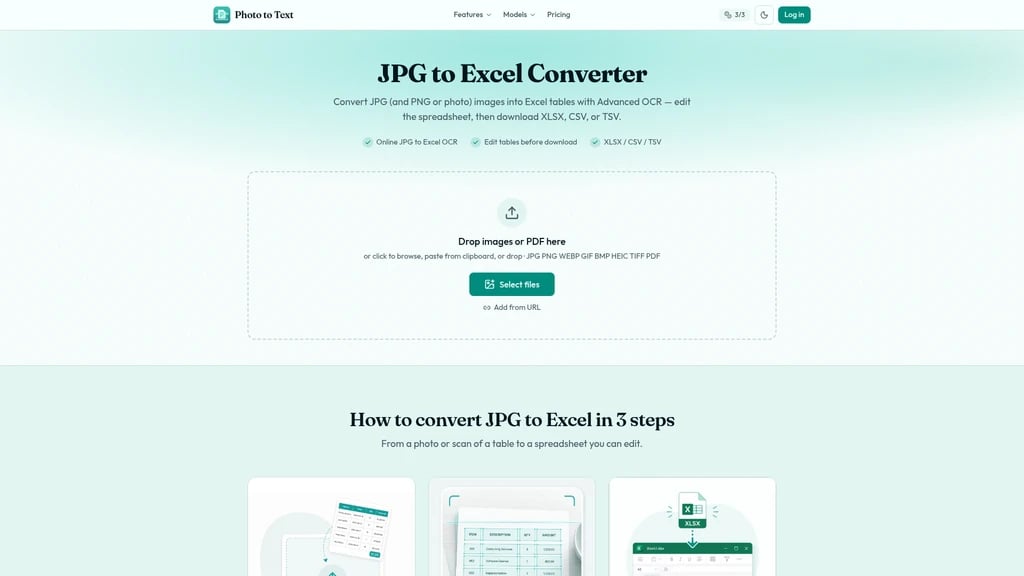
You can use it to convert tables, receipts, and invoice photos into editable spreadsheets. The Advanced OCR engine reconstructs row-and-column structure so you can edit individual cells, then download the result as XLSX, CSV, or TSV. When an image contains multiple independent tables, Photo to Text can even split them into separate worksheets.
4. DeepSeek OCR document mode
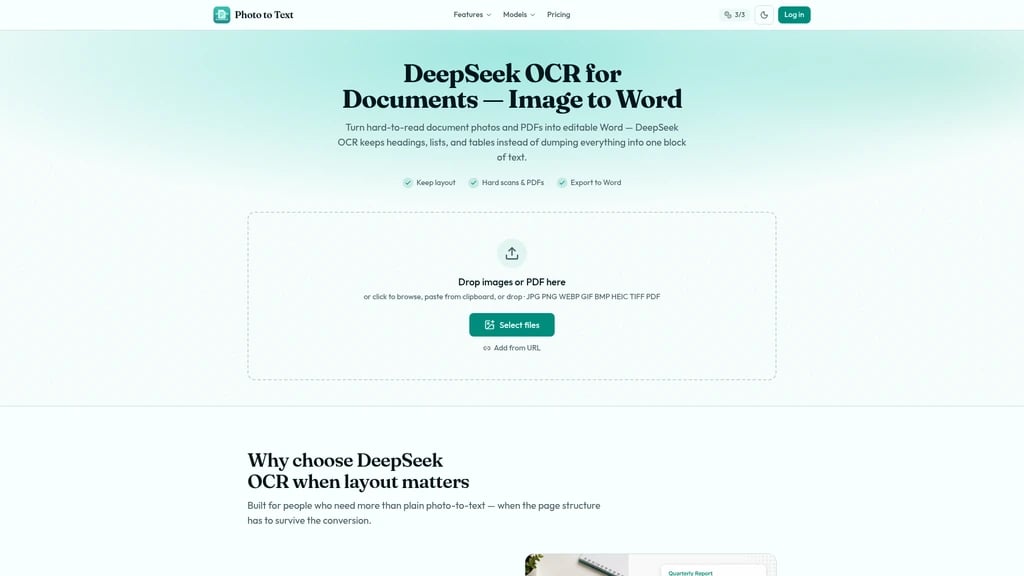
You can use it when you need to preserve the structure of complex documents. This dedicated OCR model — built on DeepSeek's document-focused vision technology — restores dense pages, multi-column layouts, and scanned materials into structured markdown with headings, lists, and tables intact. The output exports as an editable .docx file.
5. GLM OCR model mode
Consider this your alternate Advanced OCR option. GLM OCR offers similar structural preservation capabilities to DeepSeek OCR, making it a solid backup for complex document layouts — handy when you want a second opinion or need variety in how the engine interprets a tricky page.
Beyond these five tools, logged-in users can save conversion batches and review their result history at any time. Unused results are automatically cleared after about 14 days, and you can delete saved results whenever you like.
No account required — start converting instantly, no friction
Broad format support — JPG, PNG, WEBP, GIF, BMP, HEIC, TIFF, PDF all covered
Privacy-first — visitor images are never transmitted or stored
Batch processing — paid plans handle up to 100 images per batch
Free quota is limited — daily credits cap casual users at 10 images per batch
Advanced modes cost extra — premium OCR (Word/Excel/Advanced) requires paid credits for larger volumes
Real-World Scenarios Where Photo to Text Shines
Wondering whether this tool fits into your workflow? Here are six common situations where Photo to Text saves real time.
Scenario 1: Student homework and study notes
Suppose you're a student with a pile of textbooks, worksheets, and lecture handouts. Instead of retyping paragraphs by hand, snap a photo with your phone, run it through Photo to Text, and get editable text or a Word document you can incorporate directly into essays and study notes.
For crisp screenshots and clear photos, stick with Simple mode (1 credit per image). Reserve Advanced mode for blurry captures, tilted pages, handwriting, or complex layouts that need extra processing muscle.
Scenario 2: Digitizing scanned documents
When your scanner or email chain leaves you with nothing but image-only files — scanned letters, printed pages, archived documents — Photo to Text converts them to editable .docx files. Suddenly you can search, copy, edit, and archive content that was previously frozen in image form.
Scenario 3: Receipt and invoice data entry
Manual data entry is error-prone and painfully slow. With JPG to Excel, you can convert receipt and invoice photos into structured spreadsheets where amounts are filterable, sortable, and summable. Your expense reports stop being a weekend chore.
Scenario 4: Extracting text from copy-locked screenshots
Some apps and websites disable text selection entirely. When that happens, screenshot the content, then use JPG to Text to pull out the words — or JPG to Excel if the screenshot contains tabular data. You work around the restriction and get editable content in seconds.
Scenario 5: Preserving complex document layouts
Basic OCR often shreds multi-column pages and documents with headings, lists, and tables into an unreadable text soup. That's when DeepSeek OCR or GLM OCR earns its keep — these models preserve the hierarchy and structure of dense documents, multi-column pages, and scanned materials, delivering clean, structured output you can export directly to Word.
Scenario 6: Digitizing paper tables and schedules
You have a printed roster or schedule that only exists on paper. Photograph it with your phone, run it through JPG to Excel with Advanced OCR, and it reconstructs the row-and-column grid into an editable XLSX, CSV, or TSV file. No scanner, no manual retyping.
Scenario 7: Batch processing for teachers and office teams
If your job involves processing lecture slides, scanned batches, or document archives in volume, the paid plans are a game-changer. While the free tier handles up to 10 images per batch, paid subscribers can run up to 100 images or PDF pages in a single pass — turning what used to be an afternoon of manual work into a quick upload.
Handling large volumes of documents regularly? A paid plan is worth it — the ability to process 100 images per batch (versus 10 on free) can cut hours off your weekly workflow.
Getting Started in Three Simple Steps
The fastest tool is the one you can use right now — and Photo to Text delivers exactly that.
Step 1: Upload. Head to photototext.ai and drop in your image or PDF. You can drag and drop, paste from your clipboard, or browse your files. No registration, no email sign-up, no waiting.
Step 2: Choose your mode. For a single clear image, pick Simple — it costs just 1 credit and delivers fast results. For blurry shots, tilted pages, handwriting, or complex layouts, select Advanced to bring in the heavier OCR engines.
Step 3: Copy or download. Your extracted text appears instantly. Copy it to your clipboard, or download it as DOCX, Markdown, TXT, XLSX, CSV, or TSV depending on the tool you're using.
For a single crisp image, Simple mode is the budget-friendly choice — it costs only 1 credit per image, while Advanced mode consumes 10. Reserve Advanced for the images that genuinely need it.
If you're using JPG to Word, you'll pick from three modes: Insert Image (free, drops the photo into Word with no OCR), Plain Text (Simple OCR extracts just the words), or Keep Formatting (Advanced OCR preserves headings, lists, and tables).
For JPG to Excel, the flow is equally straightforward: upload your table image → Advanced OCR reconstructs the grid → edit any cell → download as XLSX, CSV, or TSV.
Want to keep a history of your conversions? You can optionally sign in with your Google account to save batch results and review them later — deleting anything you no longer need. It's entirely optional, but handy for power users who convert regularly.
Photo to Text Pricing: Pick the Plan That Fits
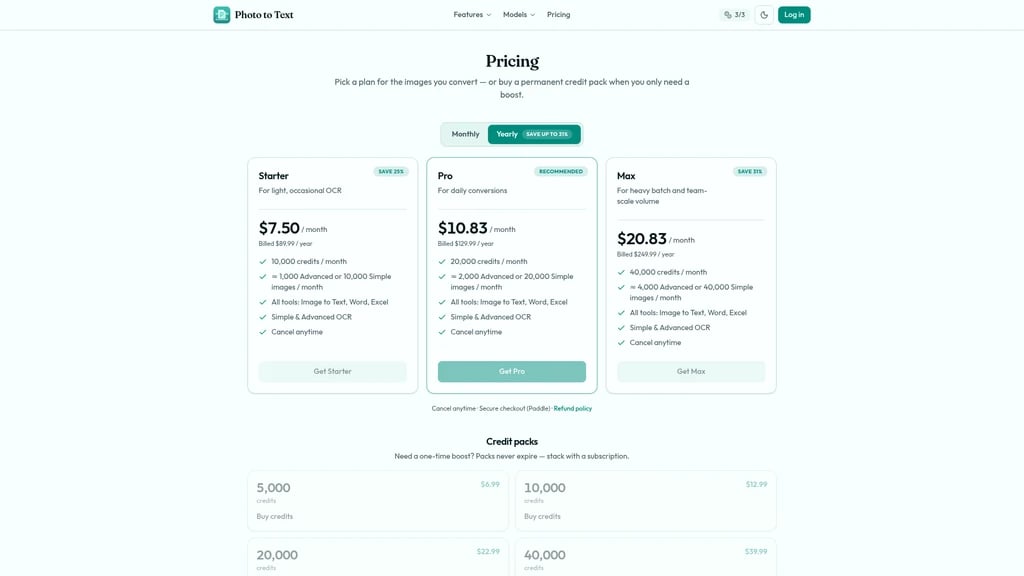
Beneath the free tier, Photo to Text offers straightforward subscription plans built entirely around one metric: credits. Here's the full picture.
Free plan
Every day, both visitors and logged-in users get free credits to run conversions. Each batch handles up to 10 images or PDF pages. For light, occasional use — the student who converts a textbook page now and then, or the occasional receipt photo — this is genuinely enough.
Subscription plans (annual billing)
Plan | Price | Monthly Credits | Approximate Images | Features |
|---|---|---|---|---|
Starter | $7.50/mo ($89.99/yr, save 25%) | 10,000 | ≈1,000 Advanced or 10,000 Simple | All tools, Simple & Advanced OCR, cancel anytime |
Pro (recommended) | $10.83/mo ($129.99/yr, save 31%) | 20,000 | ≈2,000 Advanced or 20,000 Simple | All tools, Simple & Advanced OCR, cancel anytime |
Max | $20.83/mo ($249.99/yr) | 40,000 | ≈4,000 Advanced or 40,000 Simple | All tools, Simple & Advanced OCR, cancel anytime |
How credits are consumed
Feature | Credits per Image/Page |
|---|---|
Image/PDF to Text (Simple) | 1 |
Image/PDF to Text (Advanced) | 10 |
Image/PDF to Word | 10 |
Image/PDF to Excel | 10 |
If you regularly process large batches of documents, a paid plan is the smarter route — it handles up to 100 images per batch, while the free tier caps at 10. We'd suggest the Pro plan for most daily users: at $10.83/month with 20,000 credits, it comfortably covers 2,000 Advanced conversions or 20,000 Simple ones. Light users are fine on free; Max is best for professional, high-frequency workflows.
Credit packs
Need more flexibility than a subscription? Photo to Text also offers one-time Credit Packs — permanent credits that never expire and stack on top of your subscription. If you have a seasonal spike (tax season, exam week, a big migration project), pick up a pack and you're covered without changing plans.
Payment and refunds
Payments are processed securely through Paddle.com, so your full card details are never stored by Photo to Text. Every purchase is backed by a 14-day refund window (applies to fully unused purchases), and subscriptions can be canceled anytime — the cancellation takes effect at the end of your current billing cycle.
Frequently Asked Questions
Is this photo-to-text converter really free?
Yes. The free online tool requires no registration to get started. Free daily credits are provided for both visitors and logged-in users, and credits/paid plans only unlock higher quotas and advanced modes.
Do you store my images?
No. Visitor conversions are never transmitted or stored — image data doesn't leave your session. Results aren't kept in your account history either. Logged-in users can delete saved results at any time, and unused results auto-clear after about 14 days.
Can I copy image text into Word?
Absolutely. After OCR completes, you can copy the text with formatting intact or download it as DOCX, Markdown, or TXT. You can also use the dedicated JPG to Word page to insert the image, extract plain text, or keep the original formatting.
Can I turn a photo of a table into Excel?
Yes. Use the JPG to Excel converter for receipts, table screenshots, and scanned documents. Advanced OCR extracts the table grid, lets you edit cells, and lets you download the result as XLSX, CSV, or TSV.
Does it support PDF, JPG, and PNG?
It does. JPG to text, PNG to text, PDF to text — plus WEBP, HEIC, and other common formats — all work for image-to-text conversion.
When should I use Advanced instead of Simple?
Use Simple for clear photos and screenshots. Choose Advanced when the image is hard to read — blurry captures, tilted pages, handwriting, crowded layouts, or table images destined for Excel.
Do I need an account to extract text from images?
No registration is needed to start converting. Logging in is optional — it lets you save a result history you can delete anytime, or purchase credits.
What's the difference between the three JPG to Word modes?
Insert Image: free, drops the photo directly into Word (no OCR). Plain Text: uses Simple OCR to extract editable text only. Keep Formatting: uses Advanced OCR to preserve headings, lists, and tables.
How is DeepSeek OCR different from the basic OCR?
Basic OCR works well on clear screenshots. DeepSeek OCR is built for dense documents, scans, multi-column pages, and images where the text itself is the layout — it preserves document structure and outputs structured Word files.
Does JPG to Excel preserve row-and-column structure?
Yes. Advanced OCR is designed to reconstruct table structure, so individual cells remain editable. When an image contains multiple independent tables, they may be split into separate worksheets where the layout allows it.


Comments