
- Monthly visits
- 38,383
- 2026-09
- Monthly growth +21,585.3%
OpenScreen - Record and edit polished screen demos on your computer
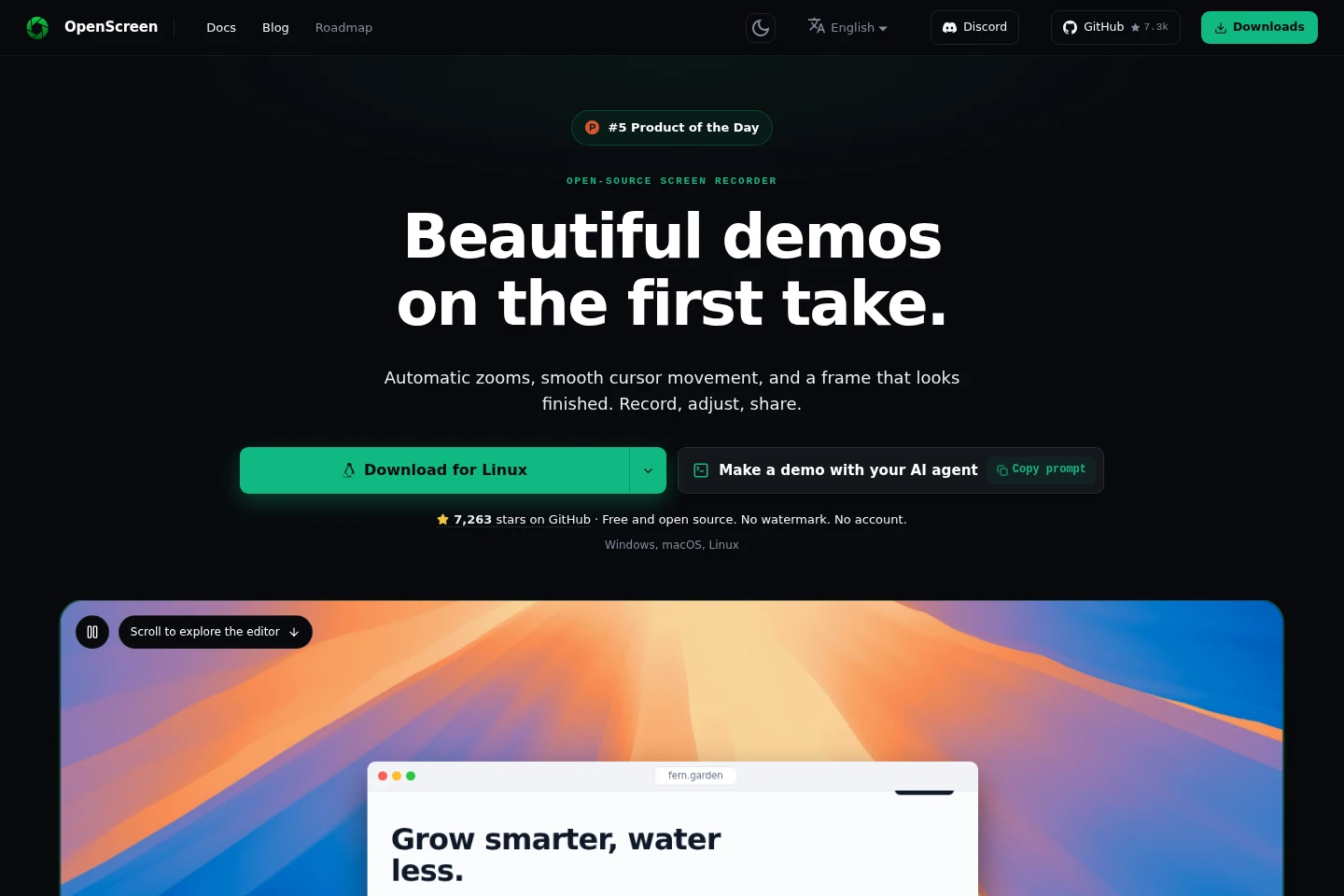
OpenScreen is a free, MIT-licensed screen recorder and video editor for Windows, macOS, and Linux. It captures screens, adds editable zooms and cursor effects, edits transcripts and captions, and exports video locally without a watermark or account. Recording, transcription, and rendering run on your computer.
- AI Video
- Video Editors
- Transcription
- Subtitle Generators
- screen recorder and video editor
- automatic screen recording zoom
- local Whisper captions
Capabilities
Screen recording
Capture a display or window and save pointer movement and clicks separately from the video pixels. Capture uses the operating system’s recording path on Windows, macOS, and Linux; system audio is supported without an extra driver.
Timeline video editing
Edit recordings on a timeline and export finished video files. Adjust backgrounds, frames, cursor appearance, zooms, speed, and trims; edits remain changeable, and exports include MP4 or GIF options.
Automatic zooms
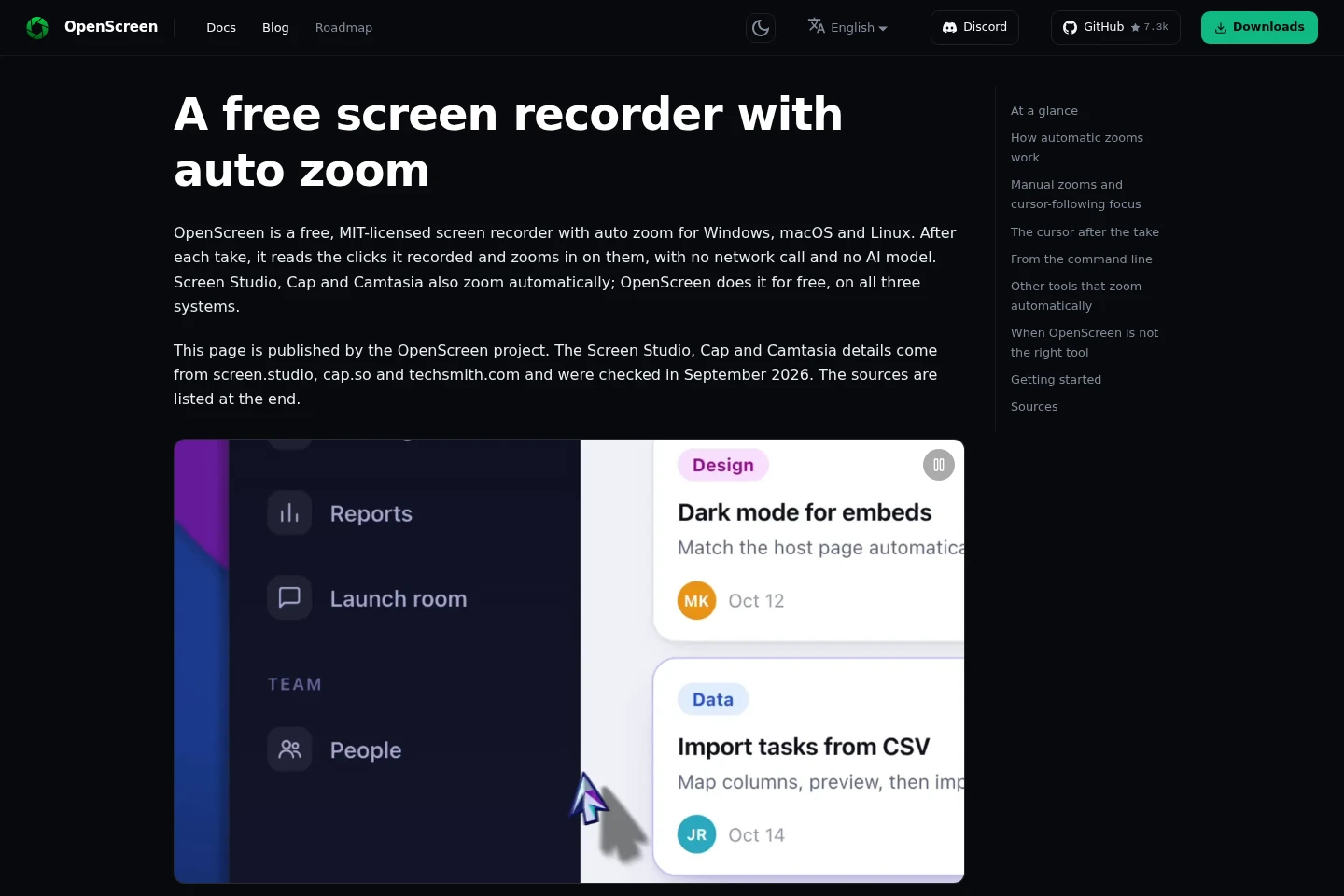
Create editable zooms around recorded clicks and place them on the timeline. The deterministic rule runs locally without AI or a network call, and users can switch it off, change the zooms, or add zooms manually.
Local captions and transcript editing
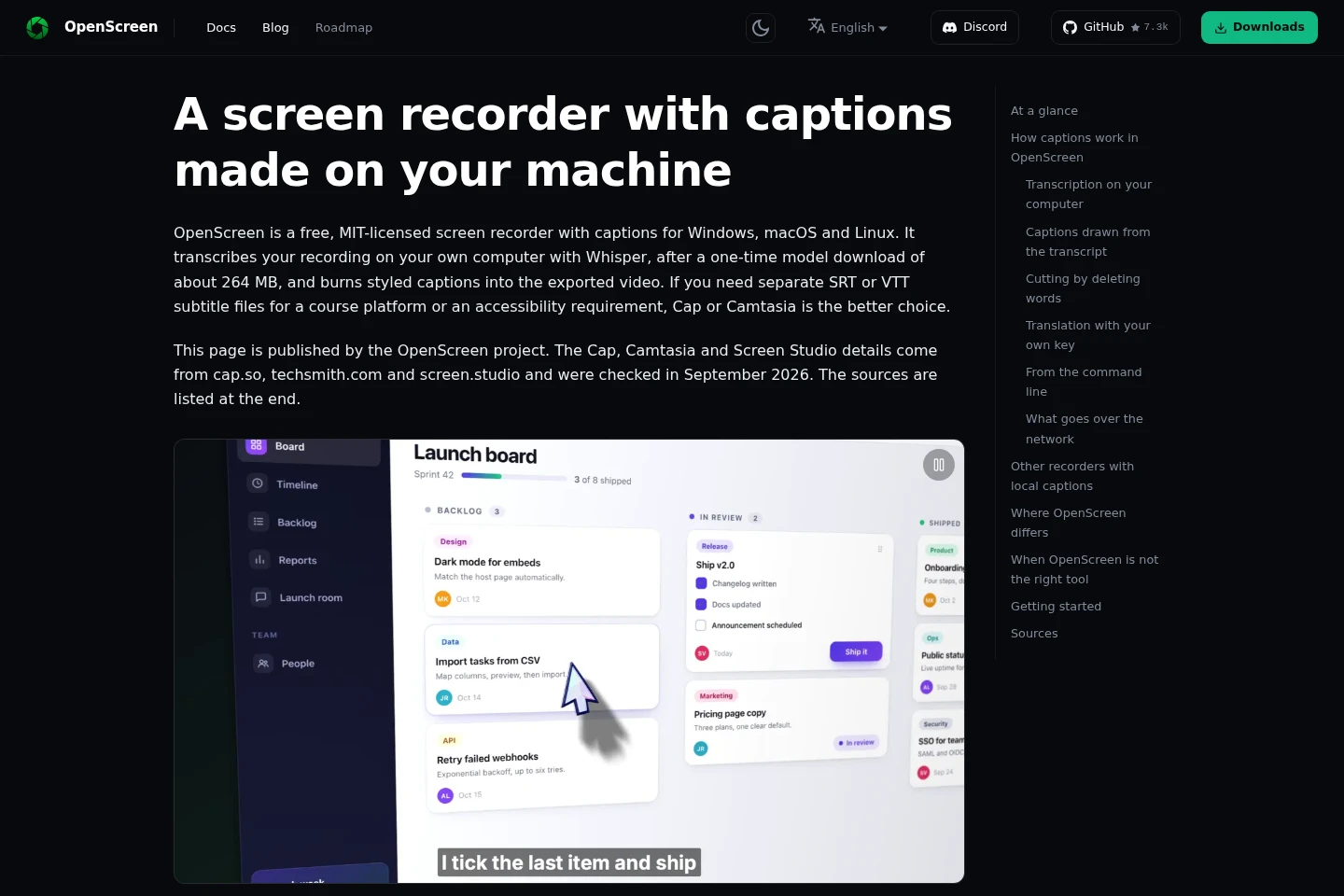
Transcribe audio locally with whisper.cpp and use the transcript to edit words or silences and style captions. The Whisper model downloads once on first use; transcription then works offline, and captions can be burned into exported video.
Pricing
OpenScreen is free software with no paid tier or usage caps. There is no subscription price to compare; all features are described as free for personal and commercial use.
The project describes OpenScreen as MIT-licensed and free forever. Optional AI editing and caption translation use a provider connected with a key supplied by the user.
Use cases
Record and edit a screen demonstration
When preparing a software or workflow demonstration, record a display or window and refine the take in the editor. Adjust zooms, cursor, framing, and timeline edits, then export a video file locally.
Caption and trim a recorded video
When a recording needs captions or spoken sections removed, transcribe it on the computer and edit words or marked silences in the transcript. Style the captions and export them burned into the video.
Limitations
Automatic zooms use recorded clicks; merely pointing at an area does not create a zoom, so users must add one manually when needed.
Caption translation and the optional AI editing agent require a connected AI provider and a key supplied by the user.
Caption transcription requires a one-time download of an approximately 264 MB Whisper model before it can work offline.
Captions are burned into the exported video; the supplied captions page advises choosing another product when separate SRT or VTT subtitle files are needed.
Who it is for
People who record software walkthroughs and product demonstrations and need to edit and export the footage locally.
Video creators who want recording, transcription, and rendering to stay on their Windows, macOS, or Linux computer.
FAQ
Is OpenScreen free for commercial use?
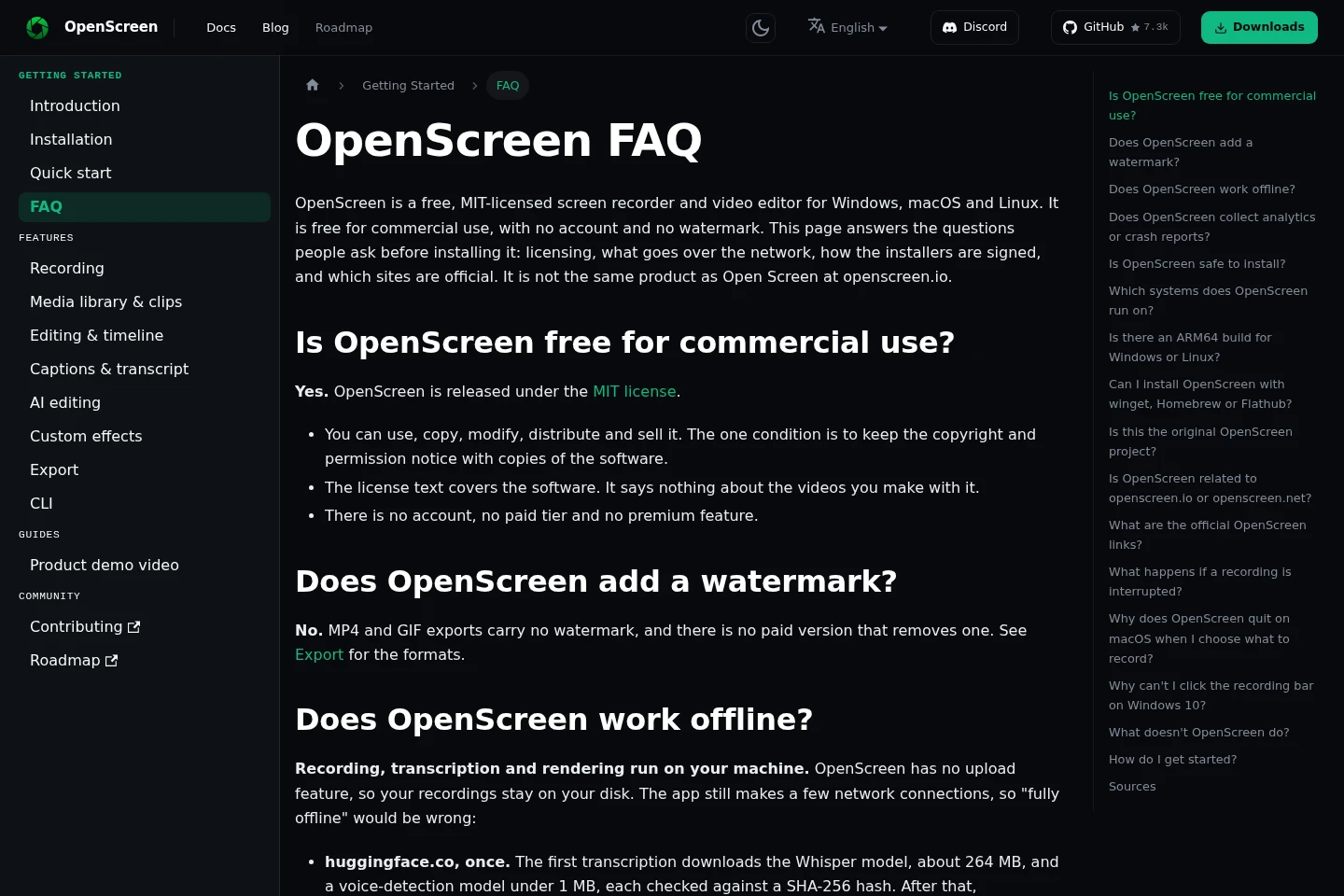
Yes. OpenScreen is released under the MIT license, and the project says it is free for personal and commercial use without a premium tier or usage caps.
Does OpenScreen add a watermark or require an account?
No. The project states that exports have no watermark and that using the app does not require an account.
Does transcription work offline?
Yes, after the Whisper model has been downloaded once. The model is about 264 MB, and transcription runs on your computer without sending the audio away.
Does automatic zoom use AI?
No. Automatic zooms are generated from recorded clicks using a deterministic rule, without an AI model or network call. The optional Smart cuts feature is separate and requires a connected AI provider and your key.
Which operating systems can run OpenScreen?
OpenScreen is available for Windows, macOS, and Linux. The project provides platform-specific installers and uses each system’s capture technology.
Comments