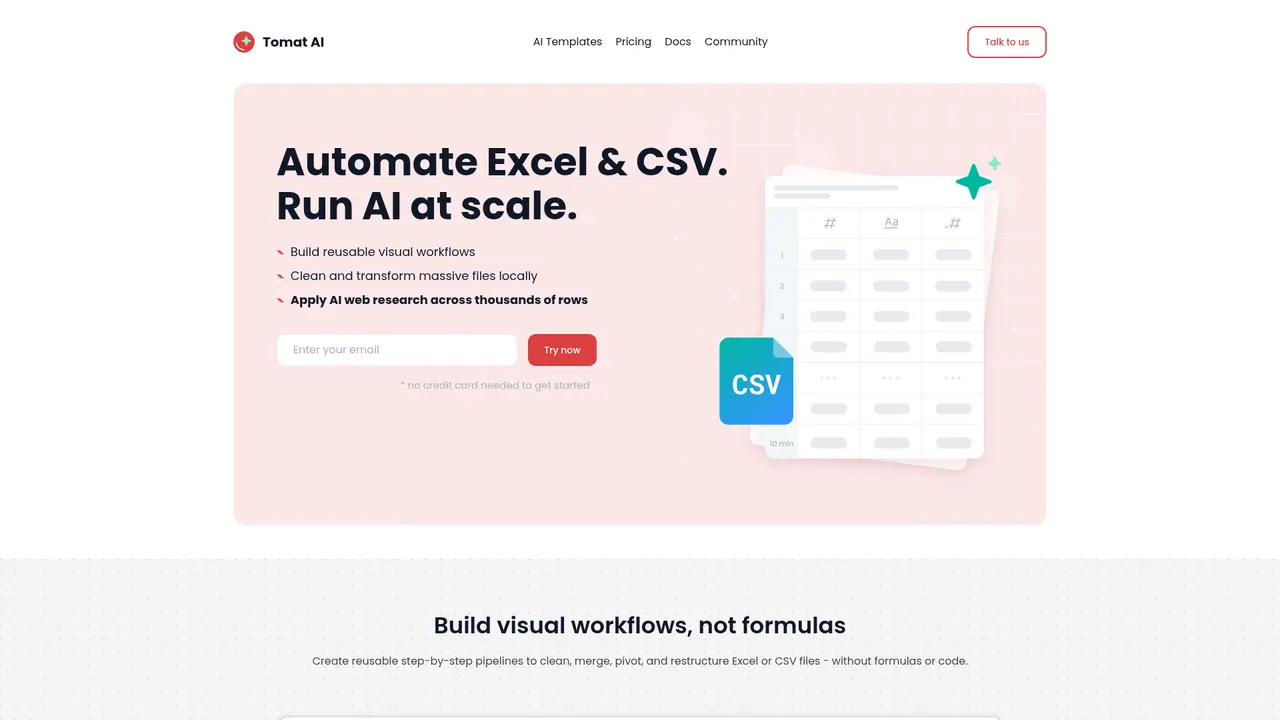
Say goodbye to Excel crashes with large files. Tomat.AI processes Excel and CSV locally on your desktop without any cloud upload. Create reusable visual workflows to automate data cleaning, transformation, and AI-powered batch processing without writing code. Perfect for sales, marketing, and data analysis teams.


If you've ever stared at a frozen Excel screen while your computer chokes on a million-row dataset, or spent hours manually cleaning up messy CSV files from ten different sources, you're not alone. These are the exact pain points that Tomat.AI was built to solve.
The reality is that modern data work is overwhelming. Your sales team needs to enrich thousands of leads with company information, but manually Googling each one is impossible. Marketing has customer data scattered across multiple platforms with inconsistent formats—emails, phone numbers, city names that don't match. You need to process large files, clean messy data, and get AI-powered insights, but every tool either crashes on big files or requires you to write complex formulas or code.
Tomat.AI is a desktop application that brings AI-powered data processing directly to your local machine. No cloud uploads, no coding required—just visual workflows that let you automate Excel and CSV processing at scale. Whether you're a data analyst, sales professional, marketer, or business operator, you can process data the way you think: visually, iteratively, and without technical barriers.
The platform has already helped thousands of users worldwide. According to one user: "I used to deal with messy CSVs from 10x different sources and spent days continuously cleaning them up in Excel. With Tomat, I was able to automate the process, ultimately saving me nearly 30 hours per month." That's the power of working smarter, not harder.
Every feature in Tomat.AI exists because of a real user pain point. Here's how each capability solves your specific problems.
Visual Workflow Builder eliminates the need to remember complex formulas. Instead of writing nested IF statements or VLOOKUPs, you drag and drop processing steps into a pipeline. Each step is visible, editable, and reusable. Create a workflow once, save it, and apply it to new files every month. The visual editor shows you exactly how your data transforms at each stage, so there's no mystery about what happens to your information.
Local Large File Processing is the solution to Excel's frustrating limitations. When your file hits 500,000 rows, Excel starts stalling. At a million, it crashes. Tomat.AI processes everything locally on your machine with no file size limits. One user processed datasets with over 2 million rows smoothly—something that would be impossible in traditional spreadsheet tools. And because nothing leaves your computer, you maintain complete control over sensitive business data.
AI Batch Data Processing transforms repetitive tasks into one-click operations. You write a single prompt—like "translate this product description to Spanish" or "extract the company tech stack from this website"—and Tomat.AI applies it to every single row. There are two modes: AI Column for processing individual cells, and AI Table for analyzing entire rows. The result? What used to take days of manual work now completes in minutes. You get consistent, scalable AI processing without any technical setup.
Data Transformation Functions give you professional-grade data cleaning without writing code. With 20+ visual transformation steps and 150+ built-in functions, you can filter rows, sort by multiple columns, group and aggregate data, merge tables, create pivot views, and standardize formats. Whether you need to normalize addresses, fix date formats, or deduplicate records, there's a transformation for that.
Web Research Function takes your data enrichment to the next level. Connect AI directly to web search to automatically gather company information, verify contact details, or research prospects at scale. Configure search depth based on how thorough you need the research to be. Your sales team can now enrich thousands of leads with verified company information in a fraction of the time.
Instant Data Insights gives you immediate visibility into your dataset quality. See unique value counts, data type distributions, statistical summaries, and quality issues at a glance. Before you start processing, you know exactly what you're working with—duplicate records, missing values, formatting inconsistencies—everything surfaced automatically.
Tomat.AI serves professionals across industries who deal with data regularly. Here's how different teams are solving their specific problems.
Sales teams enriching lead data face a common challenge: incomplete prospect information. You have thousands of leads in your CRM but lack critical details like company tech stack, industry classification, or decision-maker names. Manual research for each prospect is unsustainable. Tomat.AI solves this by using AI to automatically identify client technologies, analyze company information, and generate personalized outreach messages. One sales team processed 5,000 leads in under an hour, enriching each record with company size, industry, and tailored messaging—work that would have taken weeks manually.
Marketing professionals cleaning data deal with chaos from multiple channels. Your email marketing list comes from three different platforms, each with different formatting. Phone numbers have mixed formats (parentheses, dashes, dots). Cities are spelled differently ("New York" vs "NYC" vs "new york, ny"). Before you can run any campaign, everything needs standardization. Tomat.AI's address normalization, city name standardization, and date formatting transformations handle this automatically. What took eight hours of manual cleanup now completes in twenty minutes.
Content teams generating批量内容 need to create product descriptions, translate multilingual content, and personalize communications at scale. Writing unique descriptions for 500 products is impractical. Tomat.AI's AI templates generate product descriptions, translate content into dozens of languages, and create personalized email sequences in minutes. A content team used it to translate 2,000 product listings from English to German, French, and Spanish—in under an hour.
Operations teams validating data quality catch errors before they cause problems. Duplicate records, spelling mistakes, inconsistent formats—these issues cascade into reporting errors and bad decisions. Tomat.AI's AI-powered validation catches similarity scores, flags potential duplicates, and suggests corrections. The system identifies records that are 95% similar and suggests merges, preventing duplicates before they enter your database.
Analysts working with large datasets hit Excel's ceiling constantly. Files over 100MB become unresponsive. Formulas recalculate forever. Tomat.AI's local processing engine handles files of any size without the performance issues. Whether you're analyzing 10 million transaction records or combining datasets from multiple years, the processing stays fast and responsive.
Teams integrating multiple data sources struggle to pull together information from PostgreSQL, Snowflake, CRM systems, and flat files. Each source has its own structure and format. Tomat.AI's built-in database connectors let you pull from multiple sources into one unified workflow, automatically handling format differences and creating a consolidated output.
Start with one messy CSV file. The 30,000 free trial credits let you test the full AI processing capabilities without any commitment. No credit card required. Process one dataset, see the time savings, then decide if it's worth scaling up.
Getting started with Tomat.AI takes minutes. Here's how to go from installation to your first automated workflow.
Step 1: Download and Install Tomat.AI is available for both Windows and macOS. Visit the official website and download the installer for your operating system. The installation process is straightforward—next, next, finish. No technical configuration required.
Step 2: Explore the Interface When you first launch Tomat.AI, you'll see a clean workspace with a node-based editor in the center. On the left panel, you have your data sources and processing nodes. On the right, you have configuration options for each node. The bottom panel shows your data preview. Spend two minutes clicking through the interface—it's designed to be intuitive.
Step 3: Create Your First Workflow Start with a simple data cleaning task to learn the basics. Click "New Workflow," then add a Source node to load your CSV or Excel file. Add transformation nodes—like "Filter" to remove empty rows, or "Sort" to organize by date. Connect them by dragging from one node's output to another's input. Run the workflow and watch your data transform in the preview panel.
Step 4: Try AI Processing Once you're comfortable with basic transformations, add an AI node. Select "AI Column" or "AI Table" depending on your needs. Enter your prompt—be specific about what you want the AI to do. Select which columns the AI should access (only those columns will be sent to the AI). Run the workflow and see results populate across every row.
Step 5: Save and Reuse The workflow you just created is saved locally. Next month, when you get a new file from the same source, open your workflow, replace the source file, and run it again. No reconfiguration needed. That's the power of reusable automation.
Prerequisite: You need no special skills. If you can use Excel, you can use Tomat.AI. No programming background required. The visual interface handles everything.
Start simple. Master basic transformations first—filtering, sorting, adding calculated columns. Once you're comfortable with the workflow editor, move to AI processing. This gradual approach helps you understand each component before combining them into complex pipelines.
Data security is often the first question people ask about Tomat.AI—and it's the wrong question to worry about, because we've built privacy into the foundation of the product.
100% Local Processing is the core architecture. Every file you load stays on your machine. When you run a workflow, the data never leaves your device. There's no cloud server where your data resides. You're not uploading files to be processed remotely—everything happens locally, on your own hardware. This makes Tomat.AI suitable for handling sensitive business data, financial records, or any information you wouldn't want in someone else's hands.
Minimal AI Data Exposure means only what you explicitly share gets sent to AI. When you configure an AI processing node, you specify exactly which columns the AI can access. If your prompt only references "the email address column," the AI sees only that column—nothing else in your file. Your salary data, customer addresses, and private notes are never transmitted unless you specifically include those columns in your prompt.
No Unauthorized Cloud Uploads is non-negotiable. Tomat.AI never sends your data to any cloud service unless you explicitly configure it to do so. There's no hidden data collection, no telemetry that uploads your file contents, no background processes that share information. The software operates entirely on your desktop.
Desktop Application Architecture reinforces this security model. Unlike browser-based tools that must transmit data to servers, Tomat.AI runs as a native application on your operating system. Your data flows through your CPU and RAM, not through external networks. This architectural choice is intentional—it's how we ensure your data stays yours.
This is a significant differentiator from cloud-based alternatives. When you use online data tools, you're often required to upload your entire dataset to their servers for processing. With Tomat.AI, that requirement disappears. Your data never crosses the network boundary, so there's zero risk of interception, unauthorized access, or cloud breaches affecting your information.
Tomat.AI offers a pricing structure designed to match your scale of use—from free trial to enterprise deployment.
| Plan | Price | Users | AI Credits | Core Features |
|---|---|---|---|---|
| Trial | Free | 1 | 30,000 credits | Full functionality, no credit card required |
| Solo | $7/month | 1 | Pay-as-you-go (100,000 credits ~$5) | Complete data transformations, AI processing |
| Team | Contact Sales | 3+ | Custom quotas | Collaboration features, shared workflows |
| Enterprise | Contact Sales | Custom | Custom | Custom integrations, professional services, dedicated support |
Understanding AI Credits: 1 credit approximately equals 1 token, which is roughly 3-4 English characters. A typical prompt processing task uses 50-500 credits per row depending on complexity. The 30,000 free trial credits are enough to process approximately 600-1,000 rows with AI, or you can use them for pure transformations without any credit consumption.
Solo Plan Details: The $7/month base gives you access to all features. AI credits are purchased additionally at roughly $5 per 100,000 credits. The more you buy, the lower the per-credit cost. For most individual users processing a few thousand rows monthly, the total cost stays under $15/month.
Team and Enterprise: For organizations needing collaboration, shared workflows, database integrations, and dedicated support, contact the sales team for custom pricing. These plans include implementation assistance, custom integrations with your existing systems, and priority support channels.
The free trial is genuinely free—no credit card required. You get full access to test every feature before deciding whether to upgrade. This removes the barrier to evaluation and lets you validate the product with your actual data.
Download and install Tomat.AI, then create a new workflow. Add a "Source" node to load your CSV or Excel file. Next, add a "Use AI" node and enter your prompt—describe what you want the AI to do with each row. Select which columns the AI can access (only those columns will be sent to the AI API). Run the workflow, and the AI processes every row according to your prompt. You can use AI Column for processing individual cells or AI Table for analyzing complete rows.
None beyond basic Excel proficiency. Tomat.AI's visual workflow builder uses drag-and-drop interactions—no formulas to write, no code to debug. If you can navigate Excel, you can use Tomat.AI. The interface is designed for business users, not engineers.
Out of the box: CSV, Excel (.xlsx and .xls), PostgreSQL, and Snowflake. Beyond these core formats, the team offers integration with 450+ additional data sources through custom connectors. Contact their sales team if you need to connect to a specific platform.
Your data never leaves your device. Tomat.AI is a fully local desktop application—files process on your machine, not in the cloud. For AI features, only the columns you explicitly specify in your prompt are sent to the AI API. Your entire file, including columns not referenced in your prompt, stays local. The software never transmits data to cloud services without your explicit direction.
Both Windows and macOS are fully supported. Download the installer appropriate for your system from the official website.
Say goodbye to Excel crashes with large files. Tomat.AI processes Excel and CSV locally on your desktop without any cloud upload. Create reusable visual workflows to automate data cleaning, transformation, and AI-powered batch processing without writing code. Perfect for sales, marketing, and data analysis teams.
One app. Your entire coaching business
AI-powered website builder for everyone
AI dating photos that actually get matches
Popular AI tools directory for discovery and promotion
Product launch platform for founders with SEO backlinks
Compare the top AI agent frameworks including LangGraph, CrewAI, AutoGen, OpenAI Agents SDK, and LlamaIndex. Find the best framework for building multi-agent AI systems.
Looking for free AI coding tools? We tested 8 of the best free AI code assistants for 2026 — from VS Code extensions to open-source alternatives to GitHub Copilot.